

Monitoring your Hard disk space with Powershell
- Categories Windows Support
- Date August 17, 2021
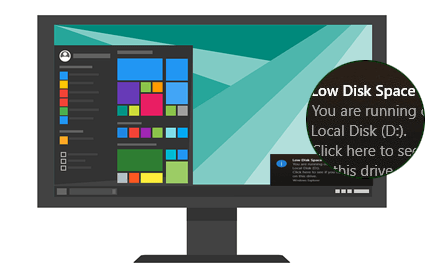
Disk space is one of the BIG 4(RAM, Disk, CPU, Network) we should monitor on daily basis, low usage of which will disturb your business and may cause disaster!
On a windows server, a powershell and scheduled task can get this job done.
Step 1 Get a email ready
To avoid the fall in the junk mailbox, you'd better use a real email account to send this. I usually create a Gmail account with APP password for it.
Step 2 Write a Powershell script
I will set 50G as a threshhold at which the script will send a warning email, or else just send a Info email, so you know your script still works.
Drives to check: set to $null to check all local (non-network) drives, or uncomment below line and comment the line below it.

# $drives = @("C","D");
$drives = $null;

# The minimum disk size to check for raising the warning
$minSize = 50GB;

# SMTP configuration: username, password & so on
$email_username = "your_username@gmail.com";
$email_password = "your password";
$email_smtp_host = "smtp.gmail.com";
$email_smtp_port = 587;
$email_smtp_SSL = 1;
$email_from_address = "youremail@gmail.com";
$email_to_addressArray = @("user1@domain.com", "user2@domain.com");

if ($drives -eq $null -Or $drives -lt 1) {
$localVolumes = Get-WMIObject win32_volume;
$drives = @();
foreach ($vol in $localVolumes) {
if ($vol.DriveType -eq 3 -And $vol.DriveLetter -ne $null ) {
$drives += $vol.DriveLetter[0];
}
}
}
foreach ($d in $drives) {
Write-Host ("`r`n");
Write-Host ("Checking drive " + $d + " ...");
$disk = Get-PSDrive $d;
if ($disk.Free / 1MB -lt $minSize) {
Write-Host ("Drive " + $d + " has less than " + $([math]::round(($minSize / 1GB),2)) `
+ " GBs free (" + $([math]::round(($disk.Free / 1GB),2)) + "): sending e-mail...");

$message = new-object Net.Mail.MailMessage;
$message.From = $email_from_address;
foreach ($to in $email_to_addressArray) {
$message.To.Add($to);
}
$message.Subject = ("[RunningLow] WARNING: " + $env:computername + " drive " + $d);
$message.Subject += (" has less than " + $([math]::round(($minSize / 1GB),2)) + " GBs free ");
$message.Subject += ("(" + $([math]::round(($disk.Free / 1GB),2)) + ")");
$message.Body = "Hello there, `r`n`r`n";
$message.Body += "this is an automatic e-mail message ";
$message.Body += "sent by RunningLow Powershell script ";
$message.Body += ("to inform you that " + $env:computername + " drive " + $d + " ");
$message.Body += "is running low on free space. `r`n`r`n";
$message.Body += "--------------------------------------------------------------";
$message.Body += "`r`n";
$message.Body += ("Machine HostName: " + $env:computername + " `r`n");
$message.Body += "Machine IP Address(es): ";
$ipAddresses = Get-NetIPAddress -AddressFamily IPv4;
foreach ($ip in $ipAddresses) {
if ($ip.IPAddress -like "127.0.0.1") {
continue;
}
$message.Body += ($ip.IPAddress + " ");
}
$message.Body += "`r`n";
$message.Body += ("Used space on drive " + $d + ": " + $([math]::round(($disk.Used / 1GB),2)) + " GBs. `r`n");
$message.Body += ("Free space on drive " + $d + ": " + $([math]::round(($disk.Free / 1GB),2)) + " GBs. `r`n");
$message.Body += "--------------------------------------------------------------";
$message.Body += "`r`n`r`n";
$message.Body += "This warning will fire when the free space is lower ";
$message.Body += ("than " + $([math]::round(($minSize / 1GB),2)) + " GBs `r`n`r`n");
$message.Body += "`r`n";
$message.Body += " ";

$smtp = new-object Net.Mail.SmtpClient($email_smtp_host, $email_smtp_port);
$smtp.EnableSSL = $email_smtp_SSL;
$smtp.Credentials = New-Object System.Net.NetworkCredential($email_username, $email_password);
$smtp.send($message);
$message.Dispose();
write-host "... E-Mail sent!" ;
}
else {
Write-Host ("Drive " + $d + " has more than " + $([math]::round(($minSize / 1GB),2)) + " GBs free: nothing to do.");
}
}
Save this script to a place, such as c:\scripts\disk_check.ps1
Step3, setup the scheduled task
Now, we will setup a task scheduler to let it run at 6am every day.
Run the Task Scheduler, right click Task Scheduler Library.
- Give it a name, click next,
- Leave Daily as default, click next,
- Daily: change the starting date, and occurring time, click Next,
- Action: choose "Start a program", click next,
- In the Program/script box, type:
C:\Windows\System32\WindowsPowerShell\v1.0\powershell.exe
Add argument (optional):
-Command "& c:\scripts\disk_check.ps1
Then, click Next - Now click Finish.
Now find the task you just created, right click and select properties, choose "Run whether user is logged on or not", "Run with highest privileges".
Now you should see your email warning/notification every day!

You may also like
-
Windows Printing issue
16 December, 2021 -

Fix Remote desktop Frozen issue
7 July, 2020